XI/PI: Settings in R/3 Partner System to Receive IDocs

In the previous posts, we have covered the XI specific aspects of creating your first XI scenario. Now, let us understand what settings are required so that the R/3 partner system is able to receive and post the IDoc data. Let us start by creating the inbound function module.

Create Inbound Function Module – Transaction SE37

In the receiving system, create a function module Z_IDOC_INPUT_ZRZSO_MT using SE37. Below, I have described the logic for the same:

Add Include MBDCONWF. This include contains predefined ALE constants
Loop at EDIDC table

  • Check if the message type is ZRZORDER. Otherwise raise WRONG_FUNCTION_CALLED exception
  • Loop at EDIDD table
    • Append data from the segments to appropriate internal tables
    • For example: append data from ZRZSEG1 segment to the internal table of type ZCUSTOMERS
  • Update the DDic tables from internal tables
  • Depending on the result of the update, fill the IDoc status record (type BDIDOCSTAT) and append it to the corresponding table.
    • Status 53 => Success
    • Status 51 => Error

You can download the sample ABAP code for the above function module here.

Assign Function Module to Logical message – Transaction WE57

  • Create a new entry
  • Specify name of the Function Module as Z_IDOC_INPUT_ZRZSO_MT
  • Also, specify Type as F, Basic IDoc type as ZRZORDER, Message type as ZRZSO_MT and Direction as 2 (Inbound)
  • Save the entry

Define Input method for Inbound Function Module – Transaction BD51

  • Create a new entry
  • Provide Function Module name as Z_IDOC_INPUT_ZRZSO_MT
  • Specify the Input method as 2
  • Save the entry

Create a Process code – Transaction WE42

  • Create a new Process Code ZPCRZ
  • Select Processing with ALE Service
  • Choose Processing type as Processing by function module
  • Save the entry
  • On the next screen, select your function module from the list
  • Save the changes
  • On the next screen, select your function module from the list
  • Save the changes

Define Logical system for the partner – Transaction SALE or BD54

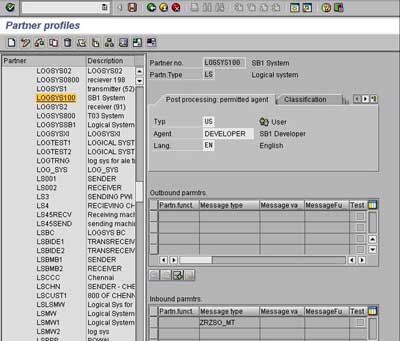
  • Define a Logical system LOGSYS100 using transaction SALE or BD54 to identify the partner business system

Create a Partner profile – Transaction WE20
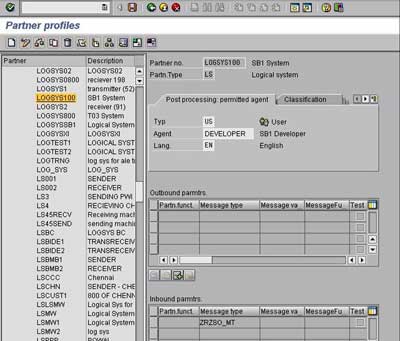
Partner Profiles - WE20

  • Go to transaction WE20 and create a partner profile corresponding to the logical system created above
  • Add the message type ZRZSO_MT and the previously created process code ZPCRZ in the inbound parameters of the partner profile
  • Save the profile

Send and Receive Data

  • Put the input XML file in the appropriate directory on the file system
  • Monitor the directory. After a few seconds, the file should get marked as read-only
  • Choose monitoring -> Integration Engine monitoring (transaction SXMB_MONI)
  • Choose ‘Monitor for Processed XML Messages’
  • Your message should appear with a checkered flag (processed successfully)
  • Check the IDoc status in target R/3 system using transaction WE02
  • You may also verify the data records in DDic tables using SE16
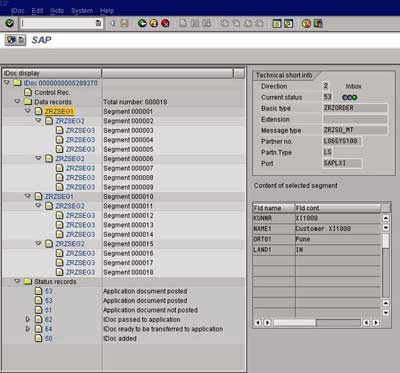
SAP Transaction WE02

Thus using a small example, we have learned how to integrate different systems so that they can communicate with each other using SAP Exchange Infrastructure. In further posts we shall discuss more XI concepts to give you better understanding of applying your XI knowledge.

This entry was posted in SAP, SAP ABAP, SAP XI / PI and tagged , , , . Bookmark the permalink. Post a comment or leave a trackback: Trackback URL.
Around the Web »»

17 Comments

  1. Naga
    Posted January 29, 2008 at 11:42 pm | Permalink

    Hi Riyaz,

    Could u post a blog on ccBPMs and Performance Monitioring.

    Thank u
    Naga

  2. Posted January 30, 2008 at 10:23 am | Permalink

    I will soon be posting blog articles on ccBPM and Performance Monitoring in continuation to the XI starter KIT series. Do expect more and more XI content soon on riyaz.net Blog. If you are not interested in other non-sap articles you can choose the relevant SAP category from the right sidebar, or simply go to URL – sapnonstop.com.

    Regards,
    Riyaz

  3. Posted January 30, 2008 at 10:57 am | Permalink

    You can also subscribe to Email updates which will notify you by email whenever new articles are posted on riyaz.net Blog. For this you can use “Dont miss a single post – Get Updates by Email” box on the right hand side-bar on this site.

  4. Posted September 15, 2008 at 8:52 pm | Permalink

    you step to step very particular,
    you can via t-code:bdbg generate inbound and oubound IDOC,

    thanks

  5. AJ
    Posted October 6, 2008 at 4:03 pm | Permalink

    Thanks! After reading gigs worth of documents on XI containing buzzwords, marketing blabber and vague abstractions these few posts have helped a great deal.

  6. Posted April 16, 2009 at 8:17 am | Permalink

    Hi Riyaz,

    Can i create ALE between Non-SAP and SAP ?

    Thanks

  7. Posted April 16, 2009 at 4:55 pm | Permalink

    Theoretically yes..I havent tried it myself…EDI can be used for communicating with non-SAP system.

  8. Karyn Garrette
    Posted April 27, 2009 at 8:32 pm | Permalink

    Your blog is so informative keep up the good work!!!!

  9. Soumitra Sinha
    Posted June 18, 2009 at 3:19 pm | Permalink

    Hello riyaz
    First time i am asking you one qs regarding Inbound IDOC.
    I am using the standard IDOC FLCUSTOMER_CREATEFROMDATA01 with message type FLCUSTOMER_CREATEFROMDATA with process code ED08.I have done every step but getting error NO_RECEIVER_CASE_ASYNC..In business sytem adapter specific Identifier i have given the logical system name but not given the r/3 system id and client as i am trying to post it in Xi server…it is taking automatically by other business service.Please help me..i am strugling from long days.

  10. Posted June 21, 2009 at 12:01 am | Permalink

    NO_RECEIVER_CASE_ASYNC: This means no receiver could be found. Check your Receiver Determination. Activate and update cache. Asysnchronous messages can be manually restarted.

  11. Posted July 1, 2009 at 2:54 pm | Permalink

    Riyaz, really nice website to refer to all XI/PI related scenarios. Keep up the good work !

  12. Posted July 1, 2009 at 3:11 pm | Permalink

    Pls add contents for BPM, XI-MDM intergration , XI-SNC Integration.

    Thanks and Regards

  13. Abaper
    Posted October 21, 2009 at 3:29 pm | Permalink

    Hi,

    We are facing problems while receiving IDOC from XI to SAP as we not sure about XI ALE settings. The IDOC itself is not getting triggered.

    Thanks,
    Abaper.

  14. Posted October 22, 2009 at 10:33 am | Permalink

    In XI system, you need to create an RFC destination (SM59) and a port (IDX1) pointing to the target SAP system. In the target system, create a logical system for XI system (BD54) and create partner profile for the logical system (WE20). IN WE20, add your IDoc type under inbound parameters and configure as described in the above article. You might alos need to add adapter-specific identifier (Logical System name) in the Integration Directory.

  15. Kiran
    Posted November 30, 2009 at 6:42 am | Permalink

    Hi Riyaz,
    I have read your article and it’s very easy article to start lthe XI. I have a doubt regarding class proxies. Can you explain me step by step procedure to derive the the class proxies(with coding) using ABAP? What will be the different steps? Thanks in advance.
    I would really appreciate your response.
    Thanks
    Kiran

  16. RJ
    Posted January 20, 2010 at 9:21 pm | Permalink

    Hi Riyaz,

    I require one info urgent.

    I am integrating my SAP AFS System to POS system via XI/PI.

    I did all require ALE settings…i am sending MATMAS from SAP to PI

    Now Does it necessary to put MATMAS as a inbound parameter in PI Partner’s profile?

    what i found that MATMAS message type even not existing in PI system ie EDMSG table.

    Regards
    RJ

  17. Posted January 21, 2010 at 6:27 pm | Permalink

    Hi RJ, You need to define inbound partner profile in the target SAP system and not in PI.

Post a Comment

Login with your Facebook or Twitter Account to comment. Alternatively, please fill in the fields marked *.

.

Connect with Facebook

*
*

You may use these HTML tags and attributes: <a href="" title=""> <abbr title=""> <acronym title=""> <b> <blockquote cite=""> <cite> <code> <del datetime=""> <em> <i> <q cite=""> <strike> <strong>

CommentLuv Enabled

Subscribe without commenting

GetSocial